
Article
Kindle Scribe planner for 2027: how to set it up with Send to Kindle
A planner on a Kindle Scribe takes about ten minutes to set up, and almost every problem people meet comes from one of three things: how the PDF reaches the tablet, a single word in an email subject, and links placed too close to the edge of the screen. This article walks through the setup of a 2027 planner that starts on 1 January, from the download to the first tap, for every Scribe, the Colorsoft included.
Before you start
The January edition of the Graphite Planner has a Kindle Scribe file in three calendar editions, each right- or left-handed. Each file has 524 pages, from 1 January to 31 December 2027, and weighs about 1.6 MB.
- Download on a computer and unzip the Kindle Scribe zip. The Scribe cannot open a zip file.
- Pick one PDF: Sunday or Monday start, a 12-hour or 24-hour clock, right- or left-handed. You only need one.
Send it with Send to Kindle
The route decides whether you can write on the planner. Amazon's help page Kindle Personal Document File Types That Support Notes says you can write directly on the page in PDF documents imported through Send to Kindle, and that the Kindle Scribe doesn't support writing on PDFs loaded via USB-C. A cable copy opens, but you can only read it.
- Open Send to Kindle for Web in a browser, sign in, and drag the PDF onto the page. The web route takes files up to 200 MB.
- Or use the Send to Kindle app on a computer or phone, or email the PDF to your Kindle's address from an approved sender, up to 50 MB. Amazon lists all three in Send PDF, EPUB and Other Files to Your Kindle.
- Wait for the sync, then open the planner from your library on the Scribe.
Never write convert
If you email the PDF with the word convert in the subject line, Amazon turns it into a Kindle book. The text is reflowed like a novel, the page design is gone, and every link goes with it: what arrives is a long scroll of loose labels. Leave the subject empty or write anything else, and in the apps leave any conversion option off. Send to Kindle vs USB covers the other ways a file can lose its links on the way.
The first taps
Write with the pen on any page. Tap links with a finger, or choose the pointer tool before you tap with the pen. With the pen in writing mode, a tap leaves a mark instead.
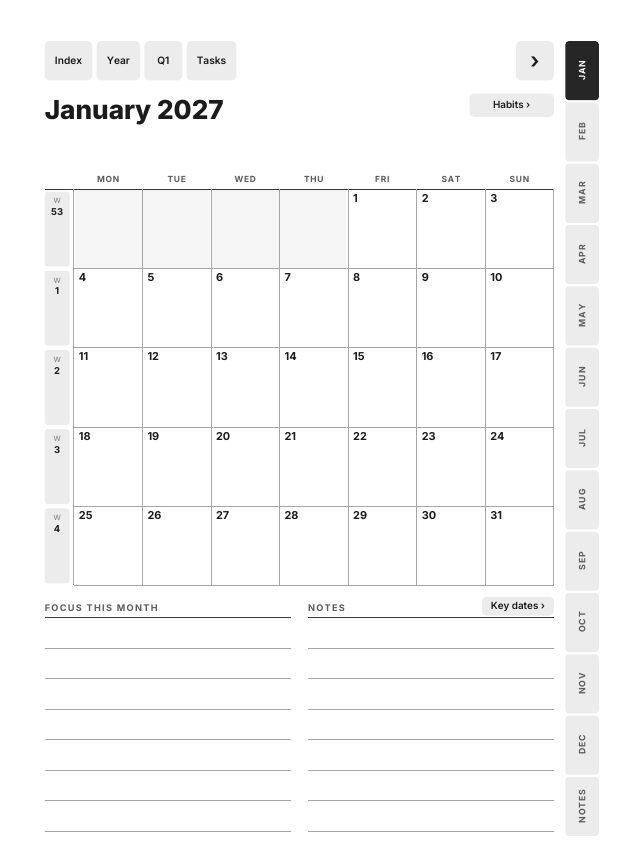
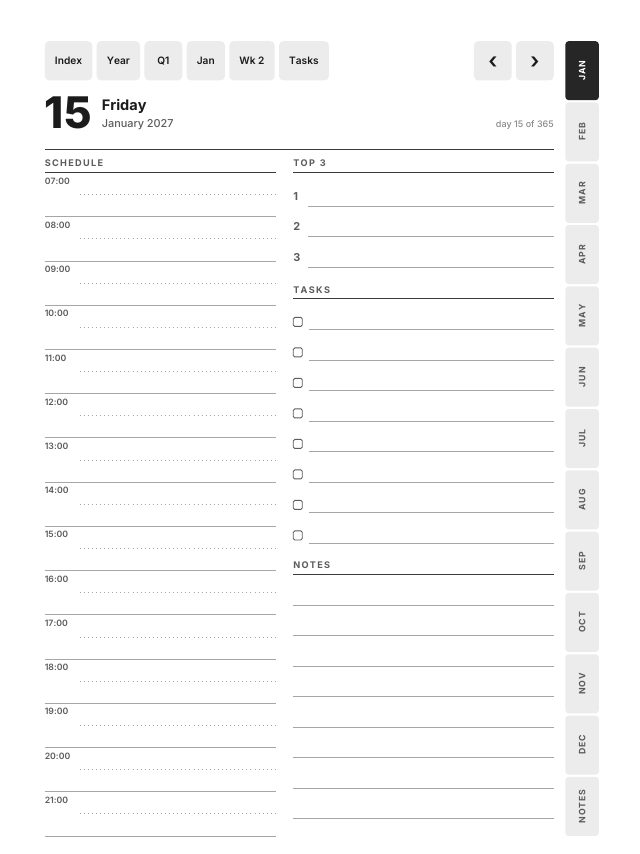
On the Index, tap Jan. On the month page, tap 15 to open Friday 15 January, then tap Index in the top bar to come back.
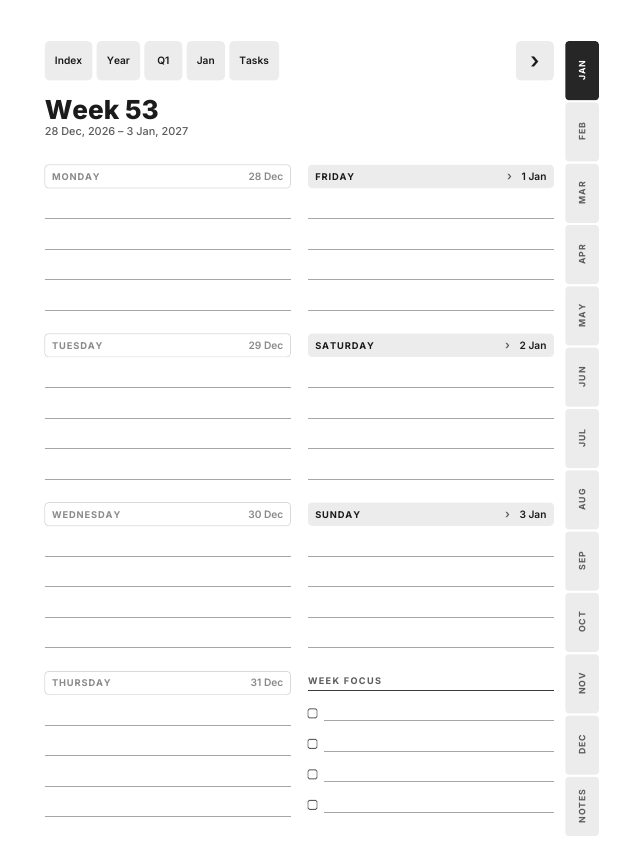
Now open the first week. 1 January 2027 is a Friday, so in the Monday-start files Week 53 begins on Monday 28 December. Those December days are printed in grey with no link, and they are the only 2026 dates in the file. In the Sunday-start file the week begins on 27 December.
The 10 mm rule
Owners have reported that, after a firmware update, taps very close to the top and right edges of the Scribe screen are sometimes missed, and that a tap near the top also opens the toolbar.
In the Kindle Scribe file, every link and button sits at least 10 mm from the top, left and right edges, measured at the size of a 10.2 inch screen. A script measures that distance on every page of all six files, and the 69,612 links in them are opened by three PDF readers before release. The month tabs run down the side, set in from the edge, and the top bar sits below the zone where the toolbar opens.
Which Scribe you have
| Your Kindle Scribe | Screen | File |
|---|---|---|
| 1st generation, 2022 · 2nd generation, 2024 | 10.2", 1860 × 2480, 3:4 | Kindle Scribe |
| 3rd generation with front light · Kindle Scribe without Front Light | 11", 1980 × 2640, 3:4 | Kindle Scribe |
| Kindle Scribe Colorsoft | 11", 1980 × 2640, 3:4, colour | Kindle Scribe |
Every Scribe screen is 3:4, so one file fits them all, edge to edge. On the 11 inch models the page is shown a little larger, so text and buttons grow, and the 10 mm margin grows with them.
On the Colorsoft
The Kindle Scribe Colorsoft has a colour screen of the same 11 inch size and shape, with 300 pixels per inch for black and white and 150 for colour. The planner is drawn in black and greys only, so nothing on the page depends on colour, and the setup is the same: Send to Kindle, no convert, and a finger or the pointer tool for links. We have no owner report on the Colorsoft yet, so send the free sample first and try the taps above.
Troubleshooting
- I can't write on the pages.
- The PDF came by USB-C, or was sent before 11 November 2022. Send it again with Send to Kindle.
- It arrived as a book with no pages.
- It was converted. Send the original PDF again without convert in the subject.
Everything for this tablet is on the Kindle Scribe page. The January edition, for every tablet or for the Kindle Scribe only, is on the planner page. If you would rather start now, Kindle Scribe planner 2027 covers the October start.
Frequently asked questions
- How do I put a PDF planner on a Kindle Scribe?
- Unzip the download, then send one PDF with Send to Kindle for Web, the Send to Kindle app or email. Leave conversion off, and open the planner from your library.
- Why should I not write convert in the email subject?
- Convert turns the PDF into a reflowed Kindle book with no pages and no links. Send the original PDF again with any other subject.
- Does the planner work on the Kindle Scribe Colorsoft?
- The screen is 11 inches and 3:4, so the Kindle Scribe file fills it, and Send to Kindle keeps it writable. We have no owner report yet, so test the free sample first.