Setup guide
How to put a PDF planner or notebook on your Galaxy Tab
On a Galaxy Tab S, a PDF planner works in Samsung Notes: import the PDF, write with the S Pen, and switch to reading mode, the book icon, to tap its links. Xodo from Google Play is the alternative if you would rather not switch modes.
1. Pick the right file
| Model | Screen | Edition |
|---|---|---|
| Galaxy Tab S12+ | 12.6" · 1752×2800 · 10:16 | Large 3:4 in an app |
| Galaxy Tab S12 Ultra | 14.6" · 1848×2960 · 10:16 | Large 3:4 in an app |
| Galaxy Tab S10 FE | 10.9" · 1440×2304 · 10:16 | Large 3:4 in an app |
| Galaxy Tab S10 FE+ | 13.1" · 1800×2880 · 10:16 | Large 3:4 in an app |
| Galaxy Tab S11 | 11" · 1600×2560 · 10:16 | Large 3:4 in an app |
| Galaxy Tab S11 Ultra | 14.6" · 1848×2960 · 10:16 | Large 3:4 in an app |
| Galaxy Tab S10+ | 12.4" · 1752×2800 · 10:16 | Large 3:4 in an app |
| Galaxy Tab S10 Ultra | 14.6" · 1848×2960 · 10:16 | Large 3:4 in an app |
| Galaxy Tab S9 | 11" · 1600×2560 · 10:16 | Large 3:4 in an app |
| Galaxy Tab S9+ | 12.4" · 1752×2800 · 10:16 | Large 3:4 in an app |
| Galaxy Tab S9 Ultra | 14.6" · 1848×2960 · 10:16 | Large 3:4 in an app |
| Galaxy Tab S9 FE | 10.9" · 1440×2304 · 10:16 | Large 3:4 in an app |
| Galaxy Tab S9 FE+ | 12.4" · 1600×2560 · 10:16 | Large 3:4 in an app |
Use the Large 3:4 files on every Galaxy Tab. The Galaxy Tab screens are 16:10, wider than tall when you turn them, so in portrait the 3:4 page shows bars above and below. Pages are greyscale, which many people like on a colour screen too.
Then choose the edition and the hand:
| In the file name | Means |
|---|---|
_us_ | Weeks start on Sunday · 12-hour schedule, 9 am · dates like March 15, 2027 · US week numbers |
_intl_ | Weeks start on Monday · 24-hour schedule, 09:00 · dates like 15 March 2027 · ISO week numbers |
_intl12_ | Weeks start on Monday · 12-hour schedule, 9 am · dates like 15 March 2027 · ISO week numbers |
_right | Right-handed: tabs on the right edge, nothing to tap on the left side |
_left | Left-handed: everything mirrored, tabs on the left edge |
These editions are for the planner. Notebook files are named by paper and hand instead, for example dot_right or meeting_left.
2. Copy it to your tablet
- Download the file and unzip it if it came in a zip file.
- Download it straight on the tablet, or copy it by USB, or save it to Google Drive and download it from there.
Samsung Notes
- Open Samsung Notes, touch and hold the Create note button and tap Import PDF.
- Or tap Create note, then the Insert button, the plus sign, and choose PDF.
- Pick the planner. It opens as a note with every page of the PDF.
3. Open it and follow the links
Samsung Notes: reading mode
- Tap the book icon to enter reading mode.
- Tap a link. It jumps to its page.
- Tap the book icon again to leave reading mode and write.
This is the accepted answer in the Samsung Community thread on planner links. Links do not respond while you are in writing mode.
Alternative: Xodo
- Install Xodo PDF Reader & Editor from Google Play.
- Open Xodo, tap the + button, choose Open file and pick the planner.
- To follow a link, stay in View mode, the hand icon, and tap the link.
- To write, open the menu at the top left, choose Annotate and pick the pen.
- Xodo saves your changes into the PDF itself, automatically in most cases, according to its own guide.
4. Write on the pages
Write with the S Pen, included with every Galaxy Tab S model listed here. Samsung's help page says you can write, draw, highlight, strike through and underline on an imported PDF, and convert S Pen handwriting to text if you like. The ink is saved in the note.
Keep the original PDF on your computer as a clean backup. To start over, or to begin a fresh notebook, copy it again under a new name.
5. If something looks wrong
- A link does nothing.
- You are in writing mode. Tap the book icon for reading mode and tap the link again.
- There are bars above and below the page.
- The planner is drawn at 3:4, and a Galaxy Tab screen held upright is taller and narrower. The bars are empty screen, not part of the page, and every link still sits where it should. Zoom in a little if you want the page to fill the width.
- Switching modes all day is tiring.
- Use Xodo: in View mode a tap follows the link, and Annotate is one tap away.
- The tabs are under my hand, or under the toolbar.
- Switch between the
_rightand_leftversions. The side opposite the tabs never has anything to tap. - I'd like Monday, or Sunday, as the first day of the week.
- Use another planner edition:
_intl_and_intl12_start on Monday, with a 24- or 12-hour clock;_us_starts on Sunday.
6. How sure we are
Every model gets one of these labels, based on what owners, the maker and established reviewers have published. Nothing here is a guess dressed up as a test.
- Should work, not confirmedGalaxy Tab S9 · Galaxy Tab S9+ · Galaxy Tab S9 Ultra · Galaxy Tab S9 FE · Galaxy Tab S9 FE+ · Galaxy Tab S10+ · Galaxy Tab S10 Ultra · Galaxy Tab S10 FE · Galaxy Tab S10 FE+ · Galaxy Tab S11 · Galaxy Tab S11 Ultra · Galaxy Tab S12+ · Galaxy Tab S12 UltraWe have not tested this tablet: open the free sample first.
This guide is based on:
- Samsung Support: Import and export PDFs with Samsung Notes
- Samsung Community: hyperlinks for a digital planner in Samsung Notes
- Xodo: how to use the Xodo mobile app
- Digital Planner B: importing a planner in Xodo
Free samples
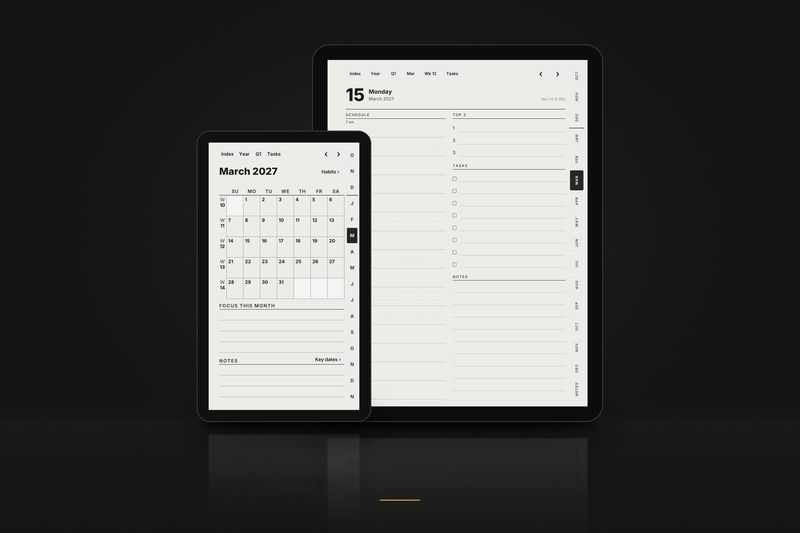
Planner, October 2026. All of October: the month, its habit tracker, every week and every day, with every link working. Files for the Large, Compact and Move layouts.
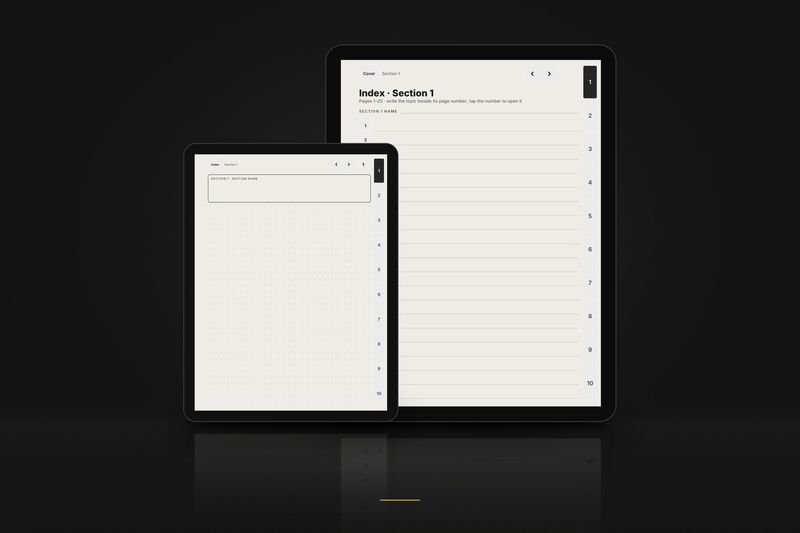
Notebook, 3 pages. The cover, the index of section 1 and page 1, in dot grid, right-handed. Files for the Large, Compact and Move layouts. Buttons that lead outside these 3 pages are printed but do nothing.
The full samples arrive by email. Tiny 3-page samples for each layout download directly from the free samples page, no email needed.
Every Samsung Galaxy Tab model with its edition and compatibility: the Samsung Galaxy Tab page.
Model pages:
Guides for other tablets: