Setup guide
How to put a PDF planner or notebook on your Bigme
Bigme tablets run Android with Google Play and come with a pen. The built-in reader lets you write on a PDF, but nobody documents that it follows the links inside one, so the safe way to use a linked planner on a Bigme is Xodo, a free PDF app from Google Play.
1. Pick the right file
| Model | Screen | Edition |
|---|---|---|
| B10 | 10.3" · 1860×2480 · 3:4 | Large 3:4 |
| HiBreak Plus | 6.13" · 824×1648 · 1:2 | Compact 3:4 |
| B7 | 7" · 1264×1680 · 3:4 | Compact 3:4 |
| B7 Pro | 7" · 1264×1680 · 3:4 | Compact 3:4 |
| B751C | 7" · 1264×1680 · 3:4 | Compact 3:4 |
| B1051C | 10.3" · 1860×2480 · 3:4 | Large 3:4 |
| inkNoteX Color | 10.3" · 1860×2480 · 3:4 | Large 3:4 |
| inkNote Color+ | 10.3" · 1860×2480 · 3:4 | Large 3:4 |
| B751C S | Not confirmed yet | Compact 3:4, a best guess |
No pen, so these can open the files but not write on them: HiBreak Pro.
The 7 inch models, the B751C, B7 and B7 Pro, have 3:4 screens and take Compact, with bigger text and wider rows. The 10.3 inch models, the B1051C, B10, inkNote Color+ and inkNoteX Color, take Large. The screen of the B751C S is not confirmed, so Compact is our best guess there.
The HiBreak Plus is a phone with a tall 1:2 screen. Compact fits it only with wide bars and very small cells, so treat it as a quick look at the day, not as your main planner.
Then choose the edition and the hand:
| In the file name | Means |
|---|---|
_us_ | Weeks start on Sunday · 12-hour schedule, 9 am · dates like March 15, 2027 · US week numbers |
_intl_ | Weeks start on Monday · 24-hour schedule, 09:00 · dates like 15 March 2027 · ISO week numbers |
_intl12_ | Weeks start on Monday · 12-hour schedule, 9 am · dates like 15 March 2027 · ISO week numbers |
_right | Right-handed: tabs on the right edge, nothing to tap on the left side |
_left | Left-handed: everything mirrored, tabs on the left edge |
These editions are for the planner. Notebook files are named by paper and hand instead, for example dot_right or meeting_left.
2. Copy it to your tablet
- Download the file and unzip it if it came in a zip file.
- Copy it to the Bigme with a USB cable, or save it to a cloud drive and open it from the cloud app.
- Bigme firmware also offers Bluetooth and a Wi-Fi import, according to ewritable's review of firmware 4.6.
In ewritable's B7 Pro review the computer could not browse the tablet's folders over USB and there was no local Wi-Fi transfer app, while Bluetooth worked. If USB fails on your model, a cloud drive app from Google Play is the easiest route.
3. Open it and follow the links
Recommended: Xodo
- Install Xodo PDF Reader & Editor from Google Play.
- Open Xodo, tap the + button, choose Open file and pick the planner.
- To follow a link, stay in View mode, the hand icon, and tap the link.
- To write, open the menu at the top left, choose Annotate and pick the pen.
- Xodo saves your changes into the PDF itself, automatically in most cases, according to its own guide.
The built-in reader
Bigme's reader opens PDFs and lets you write on them with the pen. ewritable's review of firmware 4.6 notes two limits: the handwriting is kept but has to be exported by hand as a new PDF, and importing a PDF with working links into the notes app is not supported. Whether a tap on a link jumps in the reader is not documented, so test it on the free sample before you rely on it.
4. Write on the pages
In Xodo, choose Annotate and the pen, and write. Bigme pens differ by model: the B1051C and inkNote Color+ use a Wacom EMR pen, the B7 Pro and B10 an active pen, and the B751C and B7 a capacitive pen. The HiBreak Plus takes an optional USI pen, sold separately.
What to check in the free sample
- The page fills the screen with at most thin bars, and the smallest text is easy to read.
- A tap on a link, such as a date or a button in the top bar, jumps to its page.
- The pen writes on the page, and the ink is still there after you close the file and open it again.
If all three work, the full planner will behave the same way, because it is built from the same pages.
Keep the original PDF on your computer as a clean backup. To start over, or to begin a fresh notebook, copy it again under a new name.
5. If something looks wrong
- A link does nothing, or my pen draws on the button.
- In Xodo, switch to View mode, the hand icon, and tap again. In Bigme's own reader, links may not work at all: open the planner in Xodo.
- My notes are gone when I open the file in another app.
- Bigme's reader keeps handwriting with the file only until you export it as a new PDF. Xodo writes the ink into the PDF itself.
- There are white bars around the page, or the page looks small.
- Use Compact 3:4 on the 7 inch models and Large 3:4 on the 10.3 inch ones.
- The tabs are under my hand, or under the toolbar.
- Switch between the
_rightand_leftversions. The side opposite the tabs never has anything to tap. - I'd like Monday, or Sunday, as the first day of the week.
- Use another planner edition:
_intl_and_intl12_start on Monday, with a 24- or 12-hour clock;_us_starts on Sunday.
6. How sure we are
Every model gets one of these labels, based on what owners, the maker and established reviewers have published. Nothing here is a guess dressed up as a test.
- Should work, not confirmedB751C · B751C S · B7 · B7 Pro · B1051C · B10 · inkNote Color+ · inkNoteX Color · HiBreak PlusWe have not tested this tablet: open the free sample first.
This guide is based on:
- ewritable: Bigme firmware 4.6
- ewritable: Bigme B7 Pro
- Xodo: how to use the Xodo mobile app
- Digital Planner B: importing a planner in Xodo
Free samples
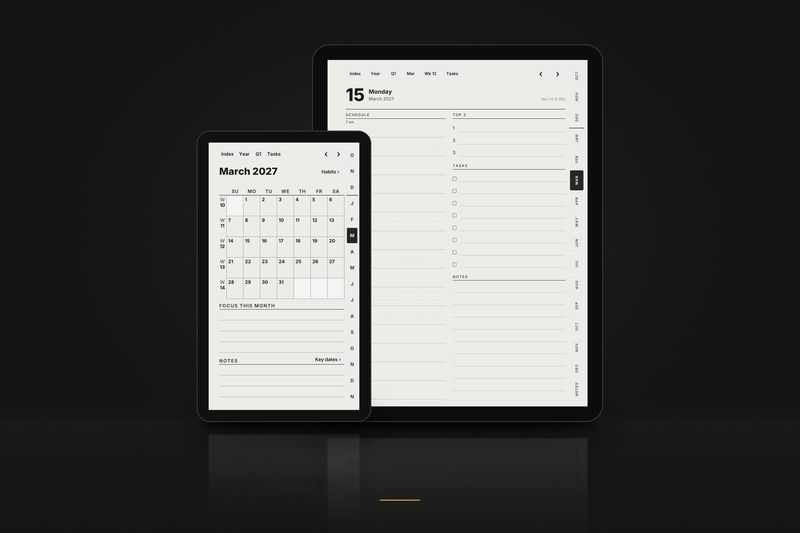
Planner, October 2026. All of October: the month, its habit tracker, every week and every day, with every link working. Files for the Large, Compact and Move layouts.
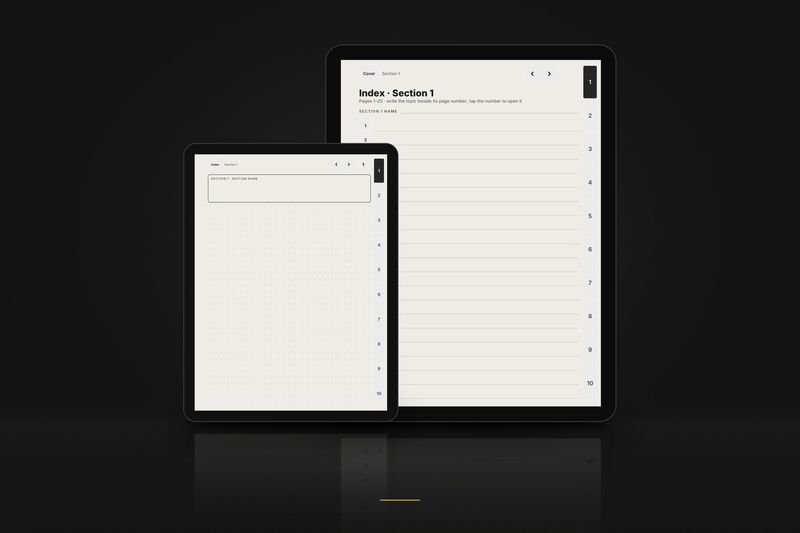
Notebook, 3 pages. The cover, the index of section 1 and page 1, in dot grid, right-handed. Files for the Large, Compact and Move layouts. Buttons that lead outside these 3 pages are printed but do nothing.
The full samples arrive by email. Tiny 3-page samples for each layout download directly from the free samples page, no email needed.
Every Bigme model with its edition and compatibility: the Bigme page.
Model pages:
Guides for other tablets: